Huby user guide
This guide covers all features and customization options in Huby. Keep it handy during your testing — and don't hesitate to flag anything that seems confusing or broken.
Getting started
Three permissions to accept on first launch, nothing more.
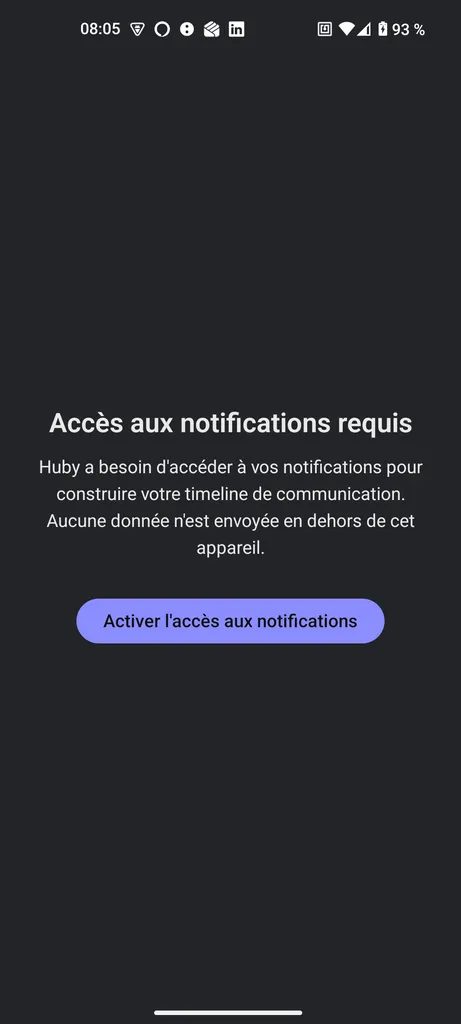
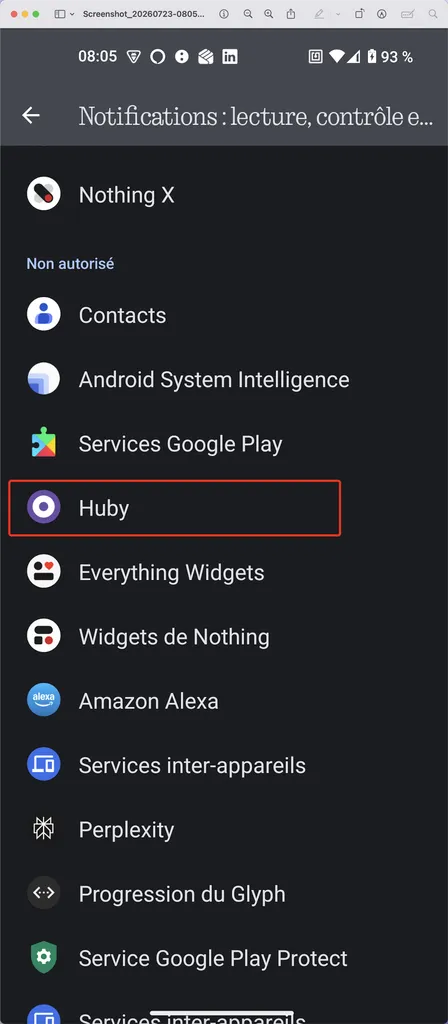
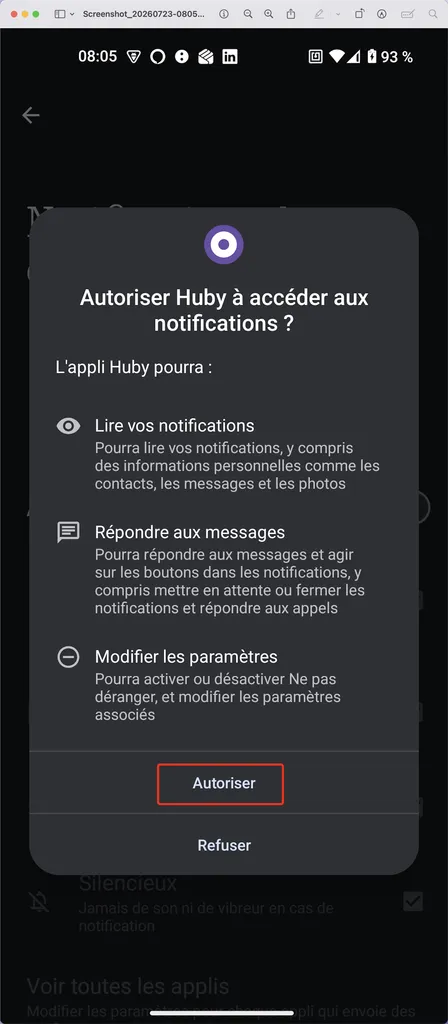
1. Notification access
On first launch, Huby redirects you to the Android system settings to enable notification access. This is essential: without this permission, Huby cannot capture anything.
2. Battery optimization
Recommended (but not required): exclude Huby from your phone's battery optimization, so notification capture keeps working even when the app has been in the background for a long time.
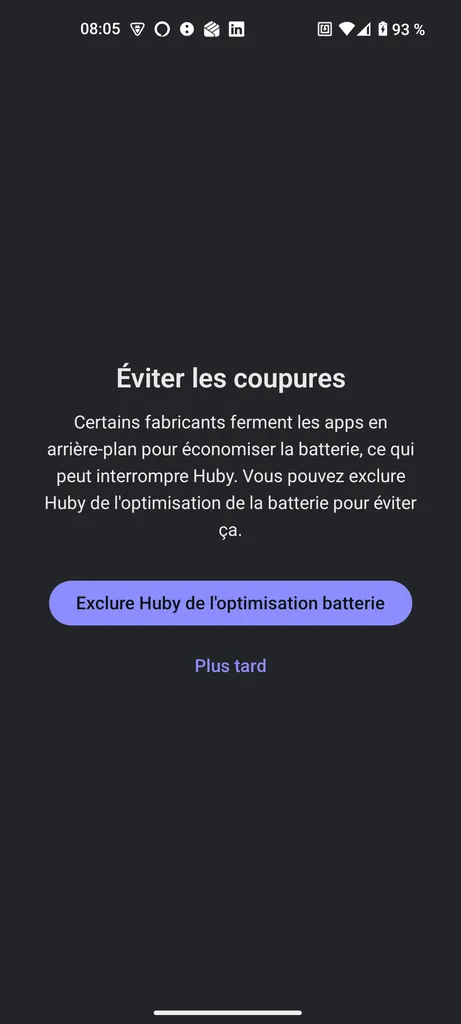
On some phones (Xiaomi, Huawei, some Samsung models), battery management is particularly aggressive. If you notice Huby stops capturing after a long period of inactivity, restarting the app usually resumes capture.
3. Contact matching (optional)
Disabled by default. If you enable it later in settings, Android will ask for contact access at that specific moment — never before.
Main screen — the timeline
All your notifications, in chronological order, in one place.
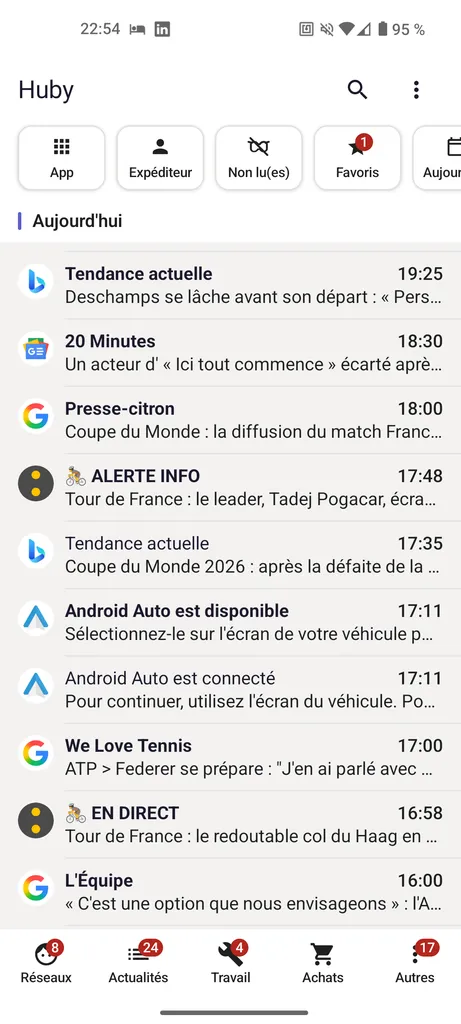
Reading a notification
- Bold title = unread notification. The title returns to normal weight once read.
- Icon on the left = source app.
- Star = notification added to favorites.
Interacting with an item
| Gesture | Effect |
|---|---|
| Tap | Marks as read and opens the exact conversation/screen in the source app (or the app in general if the precise link is no longer available). |
| Swipe left | Archives the notification (removed from the timeline). An "Undo" option briefly appears at the bottom of the screen. |
| Swipe right | Adds or removes the notification from your favorites. |
The swipe direction (left/right) will soon be customizable to your preferences. In development
Huby groups notifications that arrive in bursts (for example several messages from the same WhatsApp group) before displaying them, to avoid overwhelming the timeline. A very slight delay (less than a second) is normal.
Filter bar
At the top of the screen, two buttons each opening a dropdown menu.
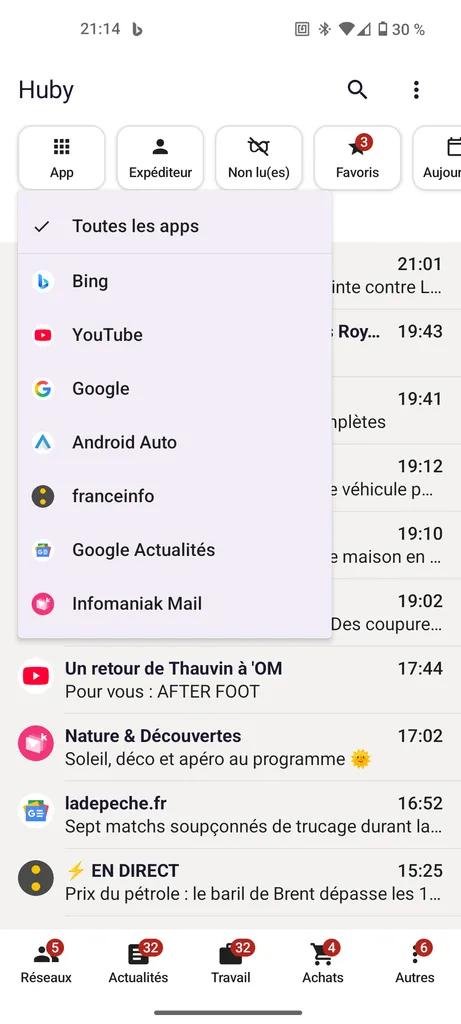
App
List of all apps that have already sent a notification, with their icon. Select one to see only its notifications; tap it again to remove the filter.
Sender
List of distinct detected senders. If you've enabled contact matching (settings), the same person appears only once even if they message you from different apps.
Other available filters
See what's active
As soon as at least one filter is active, a line appears below the bar, summarizing the applied filters. Tap this line to reset everything in one gesture.
Category bar
At the bottom of the screen, five buttons to filter by app type.

Each button shows a badge indicating the number of unread notifications received today for that category. The badge disappears if there are none. Tap a category to filter, tap it again to remove the filter.
Four of the five categories are fully customizable (name and icon) from the settings — see the Settings section below. The fifth, "Other," remains fixed: it's the safety net that collects any app not yet categorized.
Settings
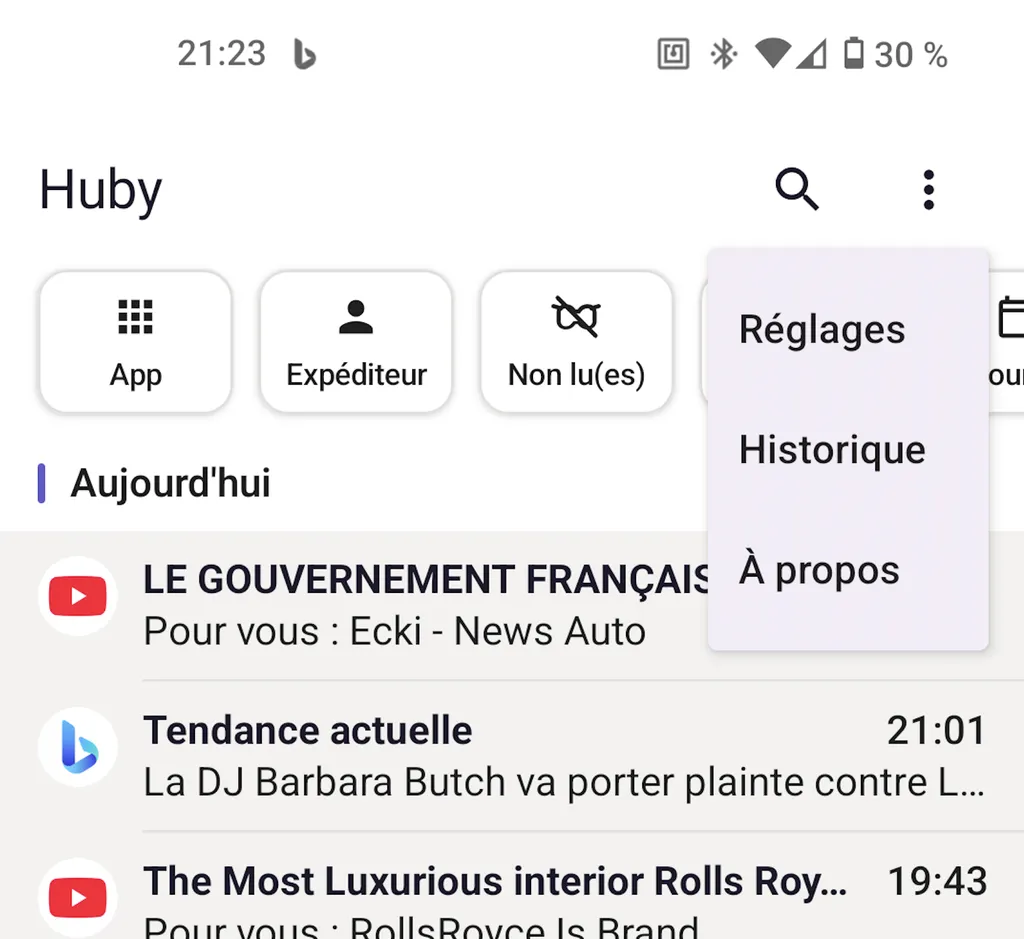
Accessible via the ⋮ menu in the top right of the main screen.
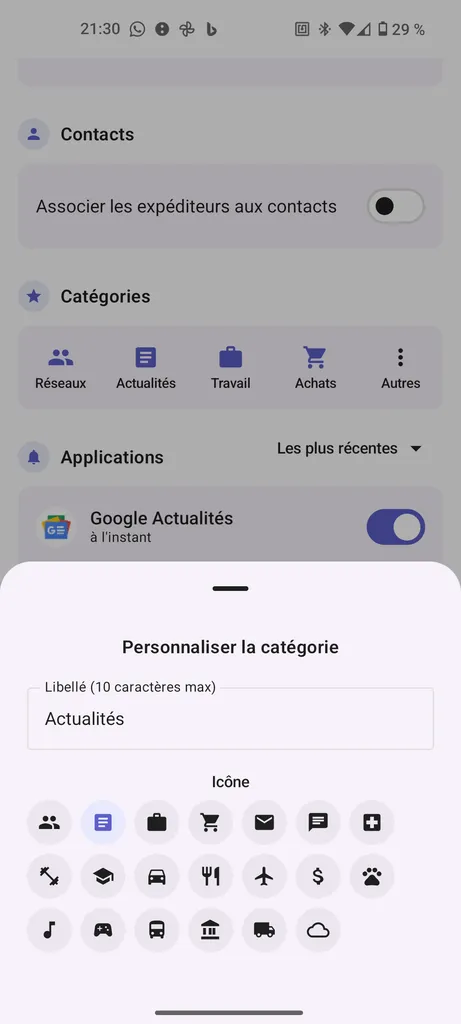
Category customization
At the very top of the Settings screen. Tap a category to give it a name (10 characters max) and choose an icon from a dedicated selection. "Other" remains locked, in the last position.
Applications
List of all apps that have already sent notifications. For each:
- Enable/disable — completely stops capturing from this app if disabled.
- Assigned category — choose which category this app belongs to.
Retention
How long notifications are kept in Huby before automatic deletion.
Theme
Contact matching
Disabled by default. Once enabled, Huby matches numbers/emails detected in notifications to your contacts, to display a name instead of a raw number. Your number or email is never stored in plain text — only the resolved name is.
Android notification drawer cleanup In development
Controls whether Huby also clears the real system notification once processed in the app.
| Option | Behavior |
|---|---|
| Disabled (default) | Huby never touches the Android drawer — your system notifications remain intact. |
| On archive | When you archive (swipe left) in Huby, the notification also disappears from the Android drawer. |
| On capture | As soon as a notification appears in Huby, it immediately disappears from the Android drawer. |
Certain notifications (ongoing calls, media playback) can never be cleared by any app, including Huby — this is an Android system protection.
History
A visual overview of who notifies you the most.
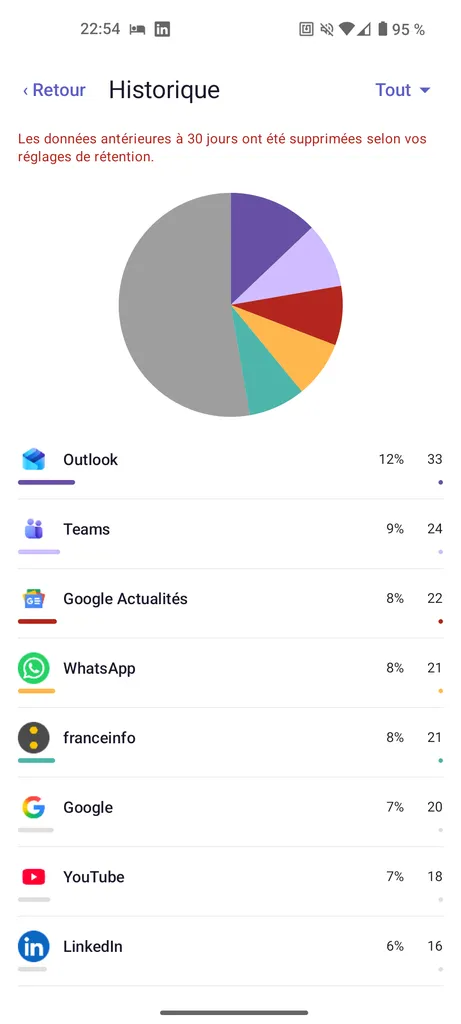
A pie chart shows your top 5 most active apps, plus an "Other" slice grouping the rest. Below, the complete list with percentage and progress bar for each app.
Choose the period in the top right: Day, Week, This month, Last month, or All.
If your retention setting is short (7 days for example), longer periods ("Last month", "All") can only show what's actually still in the database — a message warns you if data has already been purged.
Frequently asked questions
Report a bug or suggestion
Your feedback matters enormously at this stage — don't hesitate, even for a detail.
What helps most
- Your phone model and Android version
- The exact steps to reproduce the issue
- A screenshot if it's a visual problem